
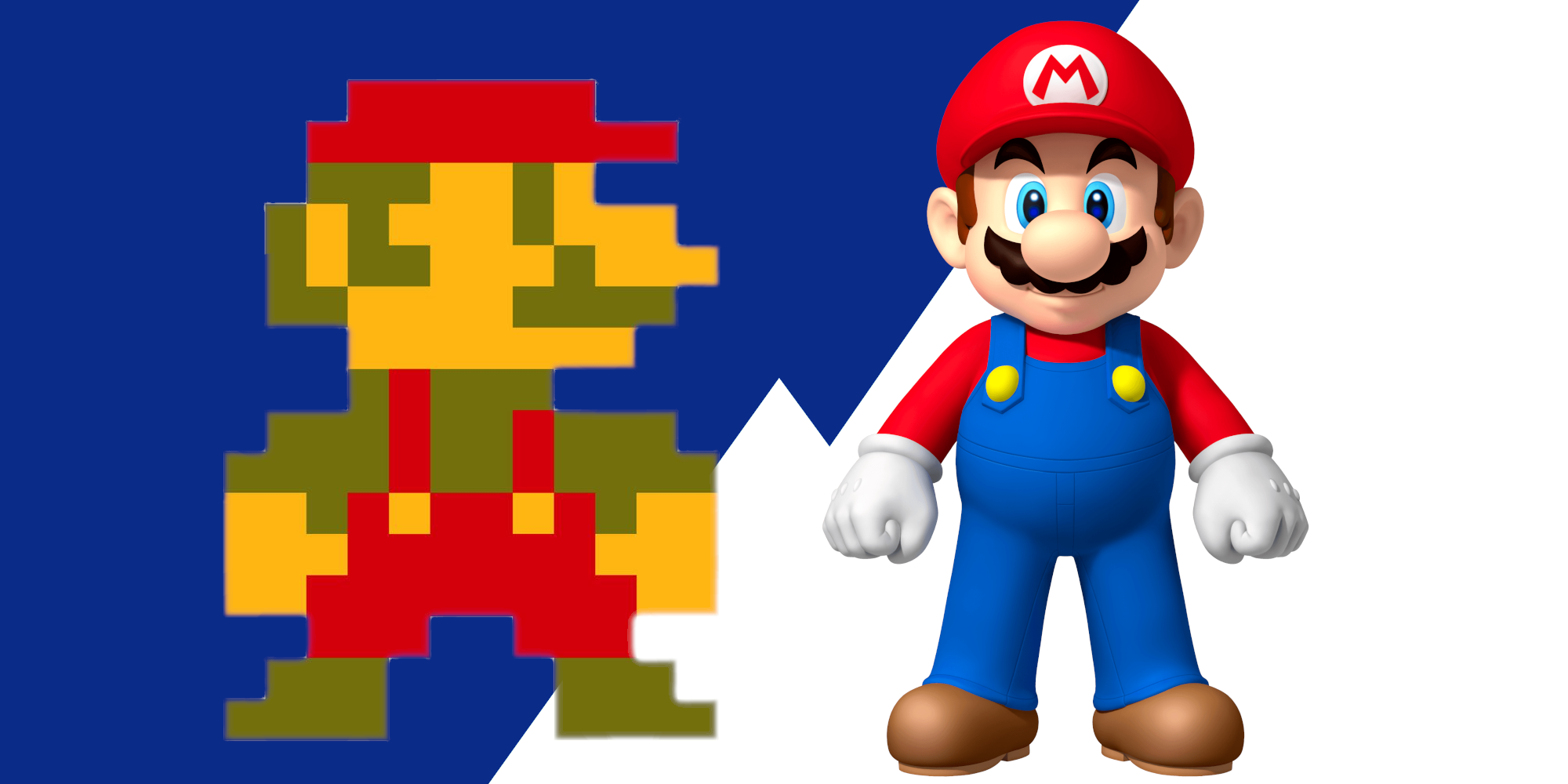
Printers ask for a minimum of 300dpi. What does this mean? Why do they need it? and how do you ensure your artwork is 300dpi?
One of the most common artwork hurdles is resolution and files are very often set to 72dpi (screen resolution), along with RGB colour (Screen colour, not print colour). This is usually due to programme defaults. So how do we navigate this?
First let's understand Resolution: DPI mean "dots per inch" it literally means how many dots are within a square inch of space. The more dots, the higher the resolution and the sharper the image becomes granting more capability for detail. Most inkjet printers produce between 300dpi- 720dpi and digital presses can reach up to 2400dpi. In contrast, your average computer/tablet/smart phone screen only utilises 72dpi,
If higher dpi creates higher resolution and your artwork becomes cleaner and clearer, why not just create your artwork at 2400dpi and be done with? Cover all bases? Because your files will also become significantly larger, much more difficult to process and probably encounter measures on its journey that could compromise your artworks integrity just due to file handling issues.
Choosing the correct resolution is a balance between the quality and processability of your files. On the whole, 300dpi for a product that can be held in the hand or a poster on the wall is plenty and higher resolutions are only utilised when printing significant sizes at scale or for things like high end art prints. Less than 300dpi is the point at which prints start to look much less attractive to the naked eye.
To ensure your artwork is up to scratch it is vitally important that you start off with the correct resolution. Changing it later as a setting in your document does not automatically convert all of your elements to the correct resolution, it just changes the setting of the file.
Adobe's Photoshop and Illustrator as well as Corel Draw allow you to choose the resolution when you create a new document and even the open source graphics programme Gimp allows you to change the resolution, however Gimp's default setting is 300dpi, where as the Adobe and Corel programmes have an initial setting of 72dpi(screen resolution), and then historically remembers your last creation setting once you change it. This creation point is vital to the resolution you have at output, so start in a good place and ensure the resolution setting is correct at creation or import.
Now be careful... You have your 300dpi template and you start compiling images. Regardless of the software you are using, if you import a raster image (photograph types- jpeg, png, gif) and make it bigger, you are lowering the resolution of that image. However an image's size initially imports is how large it is at 300dpi. Making it bigger lowers its resolution as you simply can not have any computer programme (AI aside) create information that is not there. It's frustrating. So what do you do about it?
This is where designers hit a brick wall. you have a photograph that only realises at 2cm x 3cm in a 300dpi file, but you need it 12cm x 13cm. At a guess, the image has passed through a social media channel or digital messaging journey (WhatsApp being most common). The problem here is that these platforms deliberately compress (make smaller) all the information and therefore the resolution. The smaller the information, the quicker your smartphone data can load it-simple as that. The ideal situation is that you find the original source of the image and see how big it is. The average photo at a good resolution should be a few megabyte (mb), not Kilobytes (kb). Look at the file information, not the image itself, find something big and import it into your 300dpi canvas. It should result in a much larger physical size.
What if you can't find a high resolution file? It's difficult to advise and, if we are honest, there are all sorts of tricks in the design trade that can be done, but they all come at risks and with some serious caveats, that from our position as a printer, we would not recommend. Our "Proper" response, is to find an alternative image, or find someone that can recreate the image at the correct resolution, both of which can be expensive or present high cost compromise in your design. Logos are often susceptible to these problems and, if you are a photoshop user, we highly recommend having a look at Illustrator, InDesign, Corel Draw or Gimp to utilise vector graphics where appropriate - more on vectors in another post. Photographs and illustrations, we suggest scouring forums and services that may help. It's often a steep learning curve, but one worth getting familiar with.
Checking the details when you are ready to submit artwork is simpler than you may think. The easiest way is to first save your file as a PDF. All graphics programmes of a suitable calibre should have a pdf export function. The PDF format is the simplest format to analyse the information.
If you are an Adobe user and have Acrobat Pro, then use the Pre Flight feature. It is an invaluable print tool for catching elements that may need attention prior to print. If not, then you can utilise several online tools that can analyse your pdfs DPI for you. Considering time and technology, search "online pdf print analyser" in your preferred search engine and try a few of them to see what information they can provide. Some will be able to go as far as to give information on specific elements colour profile and resolution. Like any tool, it is a matter of preference.
As a note, all of our artwork specification templates are produced at 300 dpi, however, your graphics programme will likely import the file, as opposed to just open it, so check the dialogue box thoroughly when opening it in your software. Missing this detail could see a lot of hard work needing to be produced from scratch again. If in doubt, call the print house. Its always better to check at the start of the process.


